Animaciones
Lección 14 de 37 · 4 min
Una transición necesita que algo cambie para moverse. Una animación no: arranca sola apenas se aplica, puede tener todos los pasos que quieras y repetirse.
@keyframes y animation
Una animación tiene dos partes. Los fotogramas clave (@keyframes) llevan un nombre y describen estados en el tiempo: from equivale a 0% y to a 100%, y en el medio podés poner los porcentajes que quieras. Si falta el 0% o el 100%, el navegador usa el valor que el elemento ya tiene.
@keyframes beat {0%, 100% { transform: scale(1); opacity: 1; }50% { transform: scale(1.4); opacity: 0.6; }}
La otra parte es la propiedad animation, que reproduce esos fotogramas en un elemento. Junta ocho propiedades:
- Nombre
animation-nameEl nombre de los fotogramas clave. - Duración
animation-durationCuánto dura un ciclo. - Curva
animation-timing-functionSe aplica a cada tramo entre dos fotogramas, no a la animación entera. - Retardo
animation-delayCuánto espera antes de arrancar. - Repeticiones
animation-iteration-countCuántas veces se repite;infiniteno para nunca. - Dirección
animation-directionnormalva de 0% a 100%;alternateva y vuelve. - Relleno
animation-fill-modeQué se ve fuera de la animación. Connonevuelve a su estilo,forwardsdeja el último fotograma,backwardsaplica el primero durante el delay ybothhace las dos cosas. - Estado
animation-play-staterunningopaused.
Mové los controles, usá Pausa y Repetir, y mirá cómo cambia la versión corta. La regla de abajo sigue el progreso por los @keyframes: su marca va de 0% a 100% con la misma curva, delay, repeticiones y dirección que el disco.
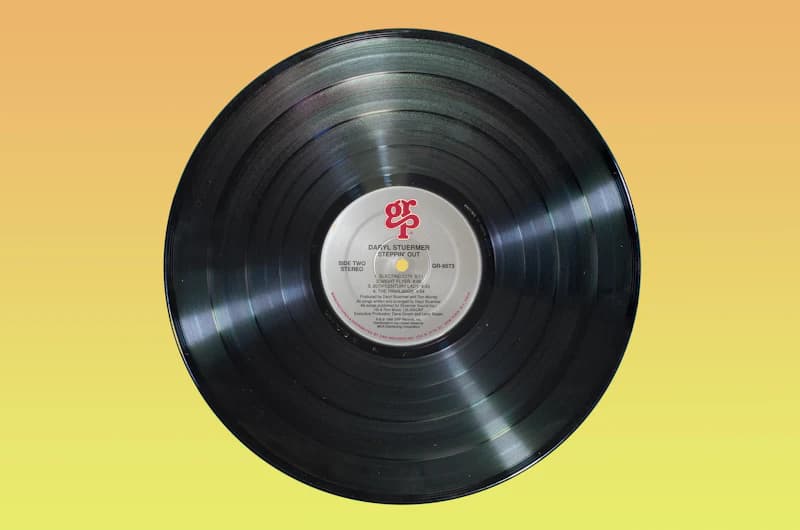
@keyframes slide {from { transform: translateX(-80px); }to { transform: translateX(80px); }}.disco {animation: slide 1s ease-in-out infinite alternate;}
<!-- los @keyframes van en el CSS, como en disco.css --><img src="disco.png" alt="" class="animate-[slide_1s_ease-in-out_infinite_alternate] motion-reduce:animate-none" />
La versión corta suele escribirse en este orden: nombre, duración, curva, delay, repeticiones, dirección, fill-mode y play-state. Lo que el navegador exige es que el primer tiempo sea la duración y el segundo, el delay.
Transición o animación
Usá una transición cuando algo pasa de un estado a otro por una causa: hover, foco, una clase nueva. Usá una animación cuando el movimiento tiene que arrancar solo, tener más de dos pasos o repetirse, como un indicador de carga.
.boton { transition: transform 200ms ease; }.boton:hover { transform: scale(1.05); }.cargando { animation: turn 1s linear infinite; }
En los dos casos, lo más liviano de animar es transform y opacity: el navegador puede resolverlas al componer la página, sin recalcular el layout ni volver a pintar. Animar width, top o left recalcula el layout en cada fotograma, y en un celular se nota.
La curva steps(4) cambia el movimiento continuo por cuatro saltos en cada tramo. Sirve para animar cuadro por cuadro, como un sprite. Con turn y steps(4), el disco pasa por 0, 90, 180 y 270 grados, y vuelve a empezar.
Movimiento accesible
A algunas personas el movimiento en pantalla les da mareo o náuseas, por ejemplo con trastornos vestibulares. Los sistemas operativos tienen una opción para reducirlo, y CSS la lee con la media query prefers-reduced-motion.
Si vale reduce, sacá el movimiento o cambialo por algo quieto. No alcanza con acortar la duración: un loop infinito más corto gira más rápido, que es peor. Por eso la demo, si tu sistema lo pide, arranca en pausa.
@media (prefers-reduced-motion: reduce) {.disco { animation: none; }}
- Destellos
WCAG 2.3.1 · nivel ANada puede destellar más de tres veces en un segundo, salvo que el destello quede por debajo de los umbrales de tamaño y contraste. - Pausa
WCAG 2.2.2 · nivel ASi algo se mueve solo, dura más de cinco segundos y se ve junto a otro contenido, tiene que haber una forma de pausarlo, detenerlo u ocultarlo. Uninfiniteentra en esta regla.
El botón Pausa de la demo cumple esa regla: es un button con aria-pressed que cambia animation-play-state.
En Tailwind
Tailwind trae cuatro animaciones listas: animate-spin, animate-ping, animate-pulse y animate-bounce. Para las tuyas, los @keyframes siguen en CSS y la animación va entre corchetes, con guiones bajos en vez de espacios. Si la vas a reusar, definila en @theme: --animate-slide crea la clase animate-slide.
| CSS | Tailwind |
|---|---|
| animation: slide 1s infinite | animate-[slide_1s_infinite] |
| animation: none | animate-none |
| --animate-slide en @theme | animate-slide |
| prefers-reduced-motion: reduce | motion-reduce:* |
| prefers-reduced-motion: no-preference | motion-safe:* |
| animation-play-state: paused | [animation-play-state:paused] |
<!-- en el CSS:@theme {--animate-slide: slide 1s ease-in-out infinite alternate;@keyframes slide {from { transform: translateX(-80px); }to { transform: translateX(80px); }}}--><div class="animate-slide motion-reduce:animate-none">…</div><!-- solo gira si el sistema no pide menos movimiento --><div class="motion-safe:animate-spin">…</div>
Animations
Lesson 14 of 37 · 4 min
A transition needs something to change before it moves. An animation doesn't: it starts on its own as soon as it's applied, can have as many steps as you want, and can repeat.
@keyframes and animation
An animation has two parts. The keyframes (@keyframes) have a name and describe states over time: from equals 0% and to equals 100%, and you can add any percentages in between. If 0% or 100% is missing, the browser uses the value the element already has.
@keyframes beat {0%, 100% { transform: scale(1); opacity: 1; }50% { transform: scale(1.4); opacity: 0.6; }}
The other part is the animation property, which plays those keyframes on an element. It bundles eight properties:
- Name
animation-nameThe name of the keyframes. - Duration
animation-durationHow long one cycle lasts. - Curve
animation-timing-functionIt applies to each stretch between two keyframes, not to the whole animation. - Delay
animation-delayHow long it waits before starting. - Iterations
animation-iteration-countHow many times it repeats;infinitenever stops. - Direction
animation-directionnormalgoes from 0% to 100%;alternategoes there and back. - Fill
animation-fill-modeWhat shows outside the animation. Withnonethe element returns to its own style,forwardskeeps the last keyframe,backwardsapplies the first one during the delay, andbothdoes both. - State
animation-play-staterunningorpaused.
Move the controls, use Pause and Replay, and watch the shorthand change. The ruler underneath follows the progress through the @keyframes: its mark runs from 0% to 100% on the same curve, delay, iterations and direction as the record.
@keyframes slide {from { transform: translateX(-80px); }to { transform: translateX(80px); }}.disc {animation: slide 1s ease-in-out infinite alternate;}
<!-- the @keyframes live in your CSS, as in disc.css --><img src="disc.png" alt="" class="animate-[slide_1s_ease-in-out_infinite_alternate] motion-reduce:animate-none" />
The shorthand is usually written in this order: name, duration, curve, delay, iteration count, direction, fill mode and play state. What the browser requires is that the first time is the duration and the second one is the delay.
Transition or animation
Use a transition when something goes from one state to another for a reason: hover, focus, a new class. Use an animation when the motion has to start on its own, have more than two steps or repeat, like a loading indicator.
.button { transition: transform 200ms ease; }.button:hover { transform: scale(1.05); }.loading { animation: turn 1s linear infinite; }
Either way, the cheapest properties to animate are transform and opacity: the browser can handle them while compositing the page, without recalculating layout or repainting. Animating width, top or left recalculates layout on every frame, and on a phone it shows.
The steps(4) curve swaps continuous motion for four jumps in each stretch. It's how you animate frame by frame, like a sprite. With turn and steps(4), the record goes through 0, 90, 180 and 270 degrees, then starts over.
Accessible motion
For some people, motion on screen causes dizziness or nausea, for example with vestibular disorders. Operating systems have a setting to reduce it, and CSS reads it with the prefers-reduced-motion media query.
When it's reduce, remove the motion or replace it with something still. Shortening the duration isn't enough: a shorter infinite loop spins faster, which is worse. That's why the demo starts paused if your system asks for it.
@media (prefers-reduced-motion: reduce) {.disc { animation: none; }}
- Flashes
WCAG 2.3.1 · level ANothing may flash more than three times in any one second, unless the flash stays below the size and contrast thresholds. - Pause
WCAG 2.2.2 · level AIf something moves on its own, lasts more than five seconds and is shown alongside other content, there must be a way to pause, stop or hide it. Aninfiniteanimation falls under this rule.
The demo's Pause button meets that rule: it's a button with aria-pressed that changes animation-play-state.
In Tailwind
Tailwind ships four ready-made animations: animate-spin, animate-ping, animate-pulse and animate-bounce. For your own, the @keyframes stay in CSS and the animation goes in brackets, with underscores instead of spaces. If you'll reuse it, define it in @theme: --animate-slide creates the animate-slide class.
| CSS | Tailwind |
|---|---|
| animation: slide 1s infinite | animate-[slide_1s_infinite] |
| animation: none | animate-none |
| --animate-slide in @theme | animate-slide |
| prefers-reduced-motion: reduce | motion-reduce:* |
| prefers-reduced-motion: no-preference | motion-safe:* |
| animation-play-state: paused | [animation-play-state:paused] |
<!-- in your CSS:@theme {--animate-slide: slide 1s ease-in-out infinite alternate;@keyframes slide {from { transform: translateX(-80px); }to { transform: translateX(80px); }}}--><div class="animate-slide motion-reduce:animate-none">…</div><!-- only spins when the system doesn't ask for less motion --><div class="motion-safe:animate-spin">…</div>